




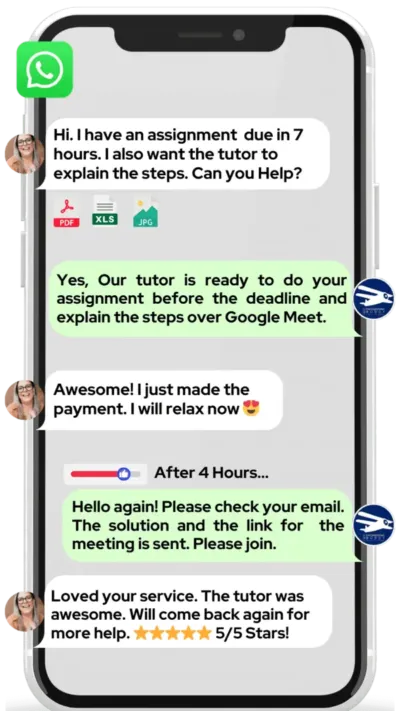
~1 min
Average Reply Time
~1 hour
To Be Matched With A Tutor
1 Trial
75% Find Their Tutor On The 1st Trial
$1
Your First 30 Minutes
Hire The Best PyCharm Tutor
Top Tutors, Top Grades. Without The Stress!

Related Subjects
Your code runs fine in the terminal. The moment you open PyCharm, nothing works — and you’ve spent three hours on a red squiggle you still can’t explain.
PyCharm Tutor Online
PyCharm is a Python-focused integrated development environment (IDE) built by JetBrains. It provides a PyCharm tutor online with tools for code completion, debugging, virtual environment management, and version control integration for Python developers.
MEB offers 1:1 online tutoring and project help across 2,800+ advanced subjects, including PyCharm and the broader software engineering ecosystem. Whether you’re stuck on interpreter configuration, confused by the debugger, or trying to connect PyCharm to a Django or Flask project, a PyCharm tutor near me from MEB works through your actual codebase — live, on screen, in real time. You won’t just fix the error; you’ll understand why it happened.
- 1:1 online sessions tailored to your exact project, course, or workflow
- Expert-verified tutors with hands-on Python and JetBrains experience
- Flexible time zones — US, UK, Canada, Australia, Gulf
- Structured learning plan built after an initial diagnostic session
- Guided project support — we explain the logic, you write and submit the code
52,000+ students across the US, UK, Canada, Australia, and the Gulf have used MEB since 2008 — including students in Software Engineering subjects like PyCharm, Django tutoring, and Jupyter Notebook help.
Source: My Engineering Buddy, 2008–2025.
How Much Does a PyCharm Tutor Cost?
Most PyCharm tutoring sessions run $20–$40/hr. Specialist sessions covering advanced configuration, CI/CD pipeline integration, or remote interpreter setups with Docker may reach $60–$100/hr. Not sure where you fall? Start with the $1 trial — 30 minutes live, no registration needed.
| Level / Need | Typical Rate | What’s Included |
|---|---|---|
| Standard (most levels) | $20–$35/hr | 1:1 sessions, debugging walkthroughs, project guidance |
| Advanced / Specialist | $35–$100/hr | Expert tutor, DevOps integration, niche configuration |
| $1 Trial | $1 flat | 30 min live session or one project problem explained in full |
Tutor availability tightens around university project deadlines and end-of-semester crunch periods — especially November and April. Book early if your deadline is fixed.
WhatsApp MEB for a quick quote — average response time under 1 minute.
Who This PyCharm Tutoring Is For
PyCharm trips up students and developers at every level — not because Python is hard, but because the IDE itself has configuration layers most courses never explain. This tutoring is for anyone whose project is broken in PyCharm even though the logic seems right.
- Undergraduate CS students whose course requires PyCharm but provides zero IDE training
- Graduate and PhD students running data science or ML pipelines in PyCharm for the first time
- Students retaking a programming module after a failed first attempt due to environment issues
- Developers switching from VS Code or Eclipse who need to remap their workflow fast
- Students with a university project submission deadline approaching and a broken interpreter to fix
- Parents supporting a student whose confidence has dropped every time PyCharm refuses to run their code
Students from programmes at MIT, Carnegie Mellon, Georgia Tech, University of Toronto, University of Melbourne, Imperial College London, and TU Delft have used MEB support for PyCharm-based coursework.
1:1 Tutoring vs Self-Study vs AI vs YouTube vs Online Courses
Self-study works if you already know what you don’t know — most PyCharm learners don’t. AI tools explain concepts fast but can’t see your actual project structure or reproduce your specific error. YouTube covers installation and basic features well, then stops exactly where your problem starts. Online courses teach Python, not PyCharm configuration. 1:1 tutoring with MEB means a tutor looks at your interpreter path, your virtual environment, your Git integration — and fixes the actual problem, not a generic version of it.
Outcomes: What You’ll Be Able To Do in PyCharm
After working with an online PyCharm tutor from MEB, you’ll be able to configure and switch between virtual environments without breaking your project dependencies. You’ll solve interpreter errors — the ones that show red in PyCharm but run fine in terminal — by understanding what the IDE is actually checking. You’ll apply the built-in debugger to step through code, inspect variable states, and catch logical errors before they reach your supervisor. You’ll set up Docker remote interpreters and manage run configurations for Django or Flask apps with confidence. You’ll present clean, well-structured Python projects — not just working code, but code organised the way professional teams expect.
Based on feedback from 40,000+ sessions collected by MEB from 2022 to 2025, students working 1:1 on PyCharm consistently report faster resolution of environment and configuration issues, greater confidence navigating the IDE under deadline pressure, and faster progress than self-directed troubleshooting alone. Progress varies by starting level and project complexity.
Source: MEB session feedback data, 2022–2025.
Start with the $1 trial — 30 minutes that doubles as your first diagnostic session.
What We Cover in PyCharm (Syllabus / Topics)

Track 1: IDE Setup and Configuration
- Installing PyCharm Community vs Professional — which version your course needs
- Configuring Python interpreters: system, virtualenv, conda, and pipenv
- Setting up and switching virtual environments without dependency conflicts
- Project structure: src layout, packages,
__init__.py, and module imports - Managing run configurations for scripts, Django, Flask, and Pytest
- Connecting to remote interpreters via SSH or Docker containers
- Resolving “No module named” and “Unresolved import” errors at the IDE level
Recommended references: JetBrains PyCharm Documentation (official), Python Crash Course by Eric Matthes, Fluent Python by Luciano Ramalho.
Track 2: Debugging, Testing, and Code Quality
- Using the PyCharm debugger: breakpoints, step-over, step-into, variable watches
- Running and interpreting unit tests with Pytest and unittest inside PyCharm
- Reading inline warnings: PEP 8 violations, type hints, and unused imports
- Refactoring tools: rename, extract method, introduce variable
- Code coverage reports — understanding which branches your tests miss
- Integrating Git version control directly inside the IDE
Recommended references: Python Testing with Pytest by Brian Okken, Clean Code by Robert C. Martin, The Pragmatic Programmer by Hunt and Thomas.
Track 3: Django, Flask, and Data Science Workflows
- Configuring Django run configurations, manage.py tasks, and database connections in PyCharm Professional
- Flask app setup — debug mode, template paths, and environment variables
- Integrating Jupyter Notebook directly inside PyCharm Professional
- Working with Anaconda environments and conda kernels
- Database tools: connecting PostgreSQL, MySQL, and SQLite via PyCharm’s built-in DB browser
- Profiling Python code — memory and CPU usage with PyCharm’s built-in profiler
Recommended references: Django for Beginners by William S. Vincent, Flask Web Development by Miguel Grinberg, Python Data Science Handbook by Jake VanderPlas.
Platforms, Tools & Textbooks We Support
PyCharm sits at the centre of a wider Python toolchain. MEB tutors work directly inside your setup — not a simplified demo environment. Below are the tools our tutors regularly work alongside during sessions.
- PyCharm Community and Professional (all recent versions)
- Anaconda and conda virtual environments
- Docker Desktop (remote interpreter configuration)
- Git and GitLab / GitHub (IDE-integrated workflows)
- Pytest, unittest, and Selenium test runners
- Django and Flask project structures
- Google Colab (for students moving between notebook and IDE environments)
At MEB, we’ve found that most PyCharm errors students bring to sessions aren’t Python errors at all — they’re IDE configuration problems. A tutor who has configured dozens of PyCharm environments spots the issue in minutes. That context gap is exactly what 1:1 support closes.
What a Typical PyCharm Session Looks Like
The tutor starts by checking where the previous session ended — usually a specific run configuration or a half-fixed import error. From there, the student shares their screen inside Google Meet and the tutor can see the exact project structure: the virtual environment selector in the bottom-right corner, the red underlines in the editor, the traceback in the run console. The tutor uses a digital pen-pad to annotate directly over the screen — circling the interpreter path, walking through the call stack frame by frame. The student then replicates the fix themselves, explaining each step. By the end, one concrete task is set — typically running a specific Pytest suite or connecting a database through PyCharm’s DB Tools — and the next session topic is noted before the call ends.
How MEB Tutors Help You with PyCharm (The Learning Loop)
Diagnose: In the first session, the tutor asks you to open your current project and attempts to reproduce your error. Within 10–15 minutes, they identify whether the issue is interpreter misconfiguration, a broken virtual environment, a missing package, or a run configuration problem. Most students have more than one.
Explain: The tutor works through the fix live using a digital pen-pad — annotating the IDE interface, showing exactly which setting to change and why. You’re not watching a recording. Every explanation responds to your specific setup.
Practice: You replicate the fix while the tutor watches. Then you try a variation: a different environment, a second run configuration, a new test case. Getting it right once isn’t enough — the tutor pushes until the pattern sticks.
Feedback: When you make an error — misread the traceback, select the wrong interpreter — the tutor stops you immediately. They explain which part of the output told them it was wrong and what to look for next time. This is where most of the real learning happens.
Plan: At the end of every session, the tutor logs what was covered and what comes next. If you’re working toward a project deadline, the plan maps backward from that date — interpreter setup first, then testing, then deployment configuration.
Sessions run over Google Meet. The tutor uses a digital pen-pad or iPad with Apple Pencil to annotate your screen in real time. Before your first session, have your project open, your current error message copied, and your Python version noted. The first session covers a full diagnostic and resolves at least one blocking issue.
Start with the $1 trial — 30 minutes of live 1:1 tutoring that also serves as your first diagnostic.
Students consistently tell us that the PyCharm debugger clicks within two sessions once a tutor shows them how to read a call stack properly. Before that, most students were ignoring the debugger entirely and using print statements for everything.
Tutor Match Criteria (How We Pick Your Tutor)
Not every Python developer knows PyCharm at depth. MEB matches on specifics.
Subject depth: Tutors are matched on Python version, PyCharm edition (Community vs Professional), and your project type — web framework, data science pipeline, or general scripting course.
Tools: Every tutor works via Google Meet with a digital pen-pad or iPad and Apple Pencil — so they can annotate your screen, not just talk over it.
Time zone: Matched to your region — US, UK, Gulf, Canada, or Australia — so sessions run when you actually need them, including late evenings and weekends.
Goals: Whether your goal is passing a university module, contributing to a team codebase, or cleaning up a research pipeline, the tutor is selected to match that scope.
Unlike platforms where you fill out a form and wait, MEB responds in under a minute, 24/7. Tutor match takes under an hour. The $1 trial means you test before you commit. Everything runs over WhatsApp — no logins, no intake forms.
Pricing Guide
PyCharm tutoring runs $20–$40/hr for most undergraduate and early graduate-level needs. Advanced sessions — Docker remote interpreters, CI/CD pipeline integration with Jenkins, or enterprise-level configuration — reach $60–$100/hr.
Rate factors include: your Python level, the complexity of your project setup, your deadline, and tutor availability. Demand peaks in November and April — book ahead if your project submission is fixed.
For students targeting roles at companies requiring production-grade Python environments or graduate programmes with intensive data engineering components, tutors with professional software development backgrounds are available at higher rates — share your specific goal and MEB will match the tier to your ambition.
Start with the $1 trial — 30 minutes, no registration, no commitment. WhatsApp MEB for a quick quote.
MEB has provided 1:1 online tutoring and project help since 2008 — 18 years of matching students with tutors who know the exact tool, not just the subject area. PyCharm tutoring is one of over 2,800 subjects covered.
Source: My Engineering Buddy, 2008–2025.
FAQ
Is PyCharm hard to learn?
PyCharm has a steep configuration curve, especially for students new to IDEs. The Python language itself is learnable — but virtual environments, interpreter paths, and run configurations confuse most beginners. A tutor cuts through that curve in one or two sessions.
How many sessions will I need?
Most students resolve their immediate blocking issue in 1–2 sessions. For a full working knowledge of PyCharm — debugging, testing, and framework integration — plan for 6–10 hours spread across 3–5 sessions, depending on your starting point.
Can you help with projects and portfolio work?
MEB tutoring is guided learning — the tutor explains the logic and walks through the approach; you write and submit the code yourself. See our Academic Integrity policy and Why MEB page for full details on what we help with and what we don’t.
Will the tutor match my exact syllabus or exam board?
Yes. Before matching, MEB asks for your course name, university or institution, and the specific PyCharm version or toolchain your programme uses. The tutor is selected to match that context, not just “Python in general.”
What happens in the first session?
The tutor asks you to open your current project and reproduce your error live. They diagnose the root cause — usually within 15 minutes — and resolve at least one blocking issue before the session ends. A plan for subsequent sessions is set at the close.
Are online PyCharm sessions as effective as in-person?
For IDE-based work, online is often more effective. The tutor sees your exact screen — your interpreter selector, your file tree, your console output. There’s nothing a whiteboard adds that a shared screen with annotation doesn’t replicate.
Can I get PyCharm help at midnight?
Yes. MEB operates 24/7 across time zones. WhatsApp response typically comes within a minute. If your project is due tomorrow morning and PyCharm won’t run your code, message now — a tutor can be matched within the hour.
What if I don’t like my assigned tutor?
Request a replacement via WhatsApp. MEB reassigns without question, no explanation required. The $1 trial exists precisely so you can test the match before committing to a full session plan.
PyCharm Community vs Professional — which do I need tutoring for?
MEB tutors cover both. Community handles most undergraduate Python work. Professional adds Django support, database tools, and remote interpreter management. Tell MEB which edition your course requires and the tutor is matched accordingly.
My PyCharm runs fine locally but breaks in my university’s submission environment — can you help?
This is one of the most common PyCharm problems MEB sees. It usually comes down to interpreter version mismatch or missing dependencies in the submission environment. A tutor walks through reproducing the submission environment locally so your project passes both checks.
How do I get started?
Message MEB on WhatsApp, describe your PyCharm problem in one sentence, and you’re matched with a tutor — usually within the hour. The first step is a $1 trial: 30 minutes live or one project problem explained in full. Three steps: WhatsApp → matched → start trial.
Trust & Quality at My Engineering Buddy
Every MEB tutor goes through subject-specific vetting — not a general Python test, but a hands-on evaluation covering IDE configuration, debugging workflows, and the frameworks relevant to their stated specialisation. Tutors complete a live demo session before being assigned to any student. Ongoing session feedback is reviewed, and tutors who receive below-threshold ratings are paused pending review. Rated 4.8/5 across 40,000+ verified reviews on Google.
MEB provides guided learning support. All project work is produced and submitted by the student. See our Academic Integrity policy and Why MEB page for full details on what we help with and what we don’t.
MEB has served 52,000+ students across the US, UK, Canada, Australia, Gulf, and Europe since 2008 — across 2,800+ subjects in software engineering, data science, and development tools. Students working on Django, Anaconda, and related Python tooling regularly use MEB alongside their PyCharm sessions. Learn more at our tutoring methodology page.
A common pattern our tutors observe is that students who’ve spent days on a PyCharm environment issue solve it in the first 20 minutes of a session — not because it was simple, but because an experienced eye sees the configuration problem immediately. That’s the difference between googling in the dark and working with someone who’s seen it before.
Explore Related Subjects
Students studying PyCharm often also need support in:
Try your first session for $1 — 30 minutes of live 1:1 tutoring or one homework question explained in full. No registration. No commitment. WhatsApp MEB now and get matched within the hour.
Next Steps
- Share your PyCharm version, your project type (Django, data science, general Python), and the error or blocker you’re hitting
- Share your availability and time zone — MEB covers all major regions 24/7
- MEB matches you with a verified PyCharm tutor — usually within the hour
- First session starts with a diagnostic so every minute is used well
Before your first session, have ready:
- Your course outline or project brief (if applicable)
- Your current error message or a screenshot of the PyCharm issue
- Your Python version and whether you’re using a virtual environment or conda
Visit www.myengineeringbuddy.com for more on how MEB works.
WhatsApp to get started or email [email protected].
52,000+ Happy Students From Various Universities




Reviewed by Subject Expert
This page has been carefully reviewed and validated by our subject expert to ensure accuracy and relevance.