How to Optimize Your Mac for Online Engineering Classes

- MATLAB alone can consume 4GB+ of RAM during active simulations on a Mac.
- Check memory pressure in Activity Monitor before every online engineering session.
- A wired Ethernet connection eliminates Wi-Fi variability during live classes.
- macOS Focus mode reduces background processing load during timed labs.
- Keep macOS and engineering software updated to avoid compatibility crashes.
Engineering students carry a unique burden into every online class. While a law or business student might get away with a browser tab and a PDF, an engineering session can demand MATLAB running a live simulation, a CAD file open in the background, Zoom streaming video, and a Python IDE all running simultaneously.
Mac is built for this kind of workload, but built for it and optimized for it are two very different things. Without the right setup, even an M-series MacBook can stutter at the worst possible moment, such as mid-lecture, during a timed lab, or right when the professor is explaining the one concept that the next assignment hinges on. Students working through demanding subjects like engineering statics will feel this pressure acutely when simulations and coursework collide.
Getting the most out of a MacBook for engineering classes takes deliberate configuration, and this guide covers exactly that.
1. Keep macOS and Engineering Software Current
Software updates are the least glamorous part of Mac maintenance, but for engineering students, they carry real weight.
Apple issues macOS patches fairly regularly for performance stability, memory management, and hardware driver accuracy and when you’re working with something as precise as SolidWorks or MATLAB, it’s best not to flirt with compatibility conflict danger.
Here’s how to check if there are any macOS updates:
- Go to Apple Menu > System Settings.
- Click on General > Software Update.
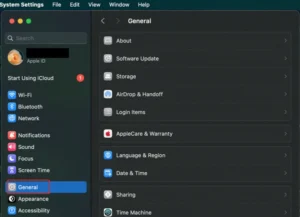
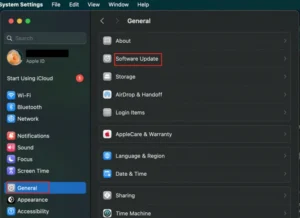
My friendly recommendation here is to apply anything available before the semester kicks off, and check again at each major module change.
The same applies to engineering applications themselves. If anything, version mismatches between macOS and installed engineering tools are one of the documented sources of performance degradation and unexpected crashes on Mac. This is especially relevant for students running simulation-heavy tools in courses like engineering dynamics, where software reliability directly affects results.
2. Watch for Input Freezes When Installing Engineering Software
Installing heavyweight engineering software on a Mac is often where things get interesting. After setting up MATLAB during my first semester of online classes, I started noticing occasional cursor freezes mid-session.
At first, it seemed random, but it consistently occurred when MATLAB loaded large datasets. I learned that most of the time, when my mouse froze on Mac, there was a corresponding software or driver compatibility issue.
An engineering application I had previously installed was conflicting with the system’s drivers and running processes, overwhelming available RAM. I applied the immediate fix of force-quitting the problematic app using Command + Option + Escape.
Still, I had to consider the longer-term solution of managing how and when my resource-heavy tools ran alongside each other.
If cursor freezes become a pattern during your engineering sessions, you should also check for conflicting login items, review accessibility settings that may have been altered during software installation, and, most importantly, ensure macOS drivers are up to date.
Students tackling material-intensive coursework — such as those who need a mechanics of materials tutor — often run multiple analysis tools simultaneously, making driver stability especially critical.
3. Manage Memory Before Every Session
RAM is the single most constrained resource during online engineering classes. MATLAB alone consumes upward of 4GB during active simulations. Add Zoom, a browser, and a code editor, and the system starts swapping memory to disk, which is where the visible slowdowns begin.
Before each class, build the habit of opening the Activity Monitor and checking memory pressure. A green indicator means the system is comfortable. Yellow or red means something needs to close.
Quick wins before logging into class include:
- Quitting all non-essential applications
- Closing idle browser tabs
- Pausing iCloud Drive or Dropbox sync
You can also disable auto-launch apps via these simple steps:
- Open Apple Menu > System Settings > General.
- Click on Login Items.
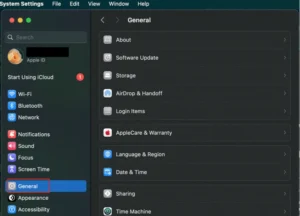
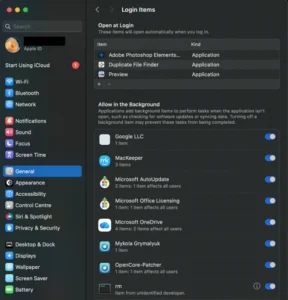
Storage matters too. Engineering file formats like .dwg, .stl, and simulation exports stack up fast. A MacBook with less than 15GB of free space will throttle performance noticeably. Make it a habit to regularly offload finished project files to an external SSD or cloud storage.
For students managing complex process simulations, tools like Aspen Plus can be particularly memory-hungry alongside other open applications. Keeping storage clear is not optional — it is part of the workflow.
If you are also navigating the balance between technical coursework and other commitments, this guide on balancing coding and language learning offers useful perspective on managing competing demands.
4. Stabilize Your Network for Live Engineering Sessions
A well-tuned MacBook on a shaky connection still underdelivers. Online engineering courses often involve live video, remote server access for computation, and real-time collaboration on shared design files. Wi-Fi introduces variability that a wired connection eliminates.
A USB-C-to-Ethernet adapter is a worthwhile investment for any engineering student taking online classes. For those locked into Wi-Fi, positioning the MacBook closer to the router and limiting competing devices on the network during class hours makes a measurable difference.
When deadlines pile up alongside connectivity issues, having a plan matters. The engineering deadline crunch survival guide covers strategies for staying on track when technical and time pressures converge.
5. Set Up a Focused Workspace to Eliminate Distractions and System Load
MacOS has a Focus mode that limits notifications during set hours. For engineering students, enabling a Study or Work focus profile during class times prevents the Notification Center from unnecessarily triggering and consuming background processing resources.
Each notification that fires up pulls system attention, however briefly, and that matters during a time-sensitive lab.
Here’s how you can set up a focused workspace on your Mac:
- Open Apple Menu > System Settings.
- Click on Focus and select Add Focus.
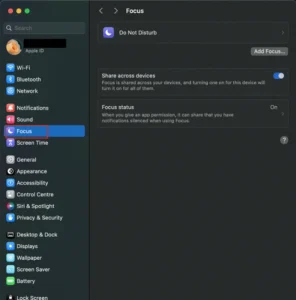
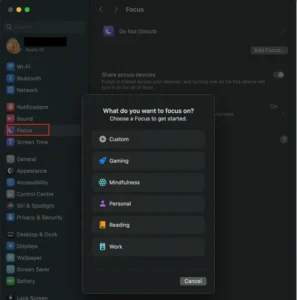
I also found that setting up a dedicated user space or, at a minimum, a clean desktop before class helped reduce the mental load of navigating a cluttered screen when switching between tools quickly. With engineering software, every second of deliberate focus counts.
Engineering students who are also building professional skills alongside their coursework may find value in resources like web skills for engineering students and guidance on the best resume builders for engineering students — both useful for making the most of focused study time. Students interested in applied fields such as automotive engineering will also benefit from a distraction-free setup when working through complex design modules.
Final Thoughts
A MacBook is more than capable of handling the rigors of online engineering classes, but it needs to be set up with intention.
Keeping macOS and all software up to date, clearing memory before heavy use, and optimizing system preferences for better performance create an environment where the computer gets out of your way, and the focus remains on your online classes.
Engineering coursework demands full cognitive attention. The last thing it should compete with is a sluggish system. Set the MacBook up properly once, maintain the habits, and the technology becomes the least stressful part of the degree.
Related Reading
******************************
This article provides general educational guidance only. It is NOT official exam policy, professional academic advice, or guaranteed results. Always verify information with your school, official exam boards (College Board, Cambridge, IB), or qualified professionals before making decisions. Read Full Policies & Disclaimer , Contact Us To Report An Error