Nearpod’s Free Plan Explained: Limits, Upgrades, and Alternatives

Key Takeaways
Nearpod is an interactive teaching platform used in more than 75% of U.S. school districts and in roughly 150 countries worldwide. Teachers build slide-based lessons, layer in quizzes, open-ended questions, polls, and virtual reality experiences, then run those lessons live in class or release them for self-paced review. If your students need deeper subject support beyond classroom tools, a machine learning tutor can provide the one-on-one guidance that platforms like Nearpod are not designed to offer.Students join on any device using a short code — no dedicated app install required. The platform has earned strong ratings: 4.7 out of 5 from 171 reviews on Software Advice, an identical score on Capterra, and 4.6 out of 5 from 121 reviewers on G2.The free Silver plan is genuinely useful for getting started, but it caps at 40 students per lesson and 100MB of storage — limits that create real friction for teachers who regularly work with larger groups or build video-heavy lessons. For students working through technical design coursework, connecting with an AutoCAD tutor can complement what any classroom platform provides.The jump to Gold ($159/year) and Platinum ($397/year) raises an honest question about value. This guide answers that question by covering every plan in detail, breaking down school licensing, comparing Nearpod with Kahoot and Pear Deck, and walking you through setup for both live and async lessons.- Nearpod’s free Silver plan caps at 40 students per live session and 100MB storage.
- Gold ($159/yr) raises the cap to 75 students; Platinum ($397/yr) reaches 90.
- All fees are prepaid and non-refundable except a prorated school-license overlap.
- Nearpod is used in over 75% of U.S. school districts and roughly 150 countries.
- Kahoot excels at quiz games; Pear Deck suits Google Workspace; Nearpod covers full lesson delivery.
Nearpod Reviews and Testimonials
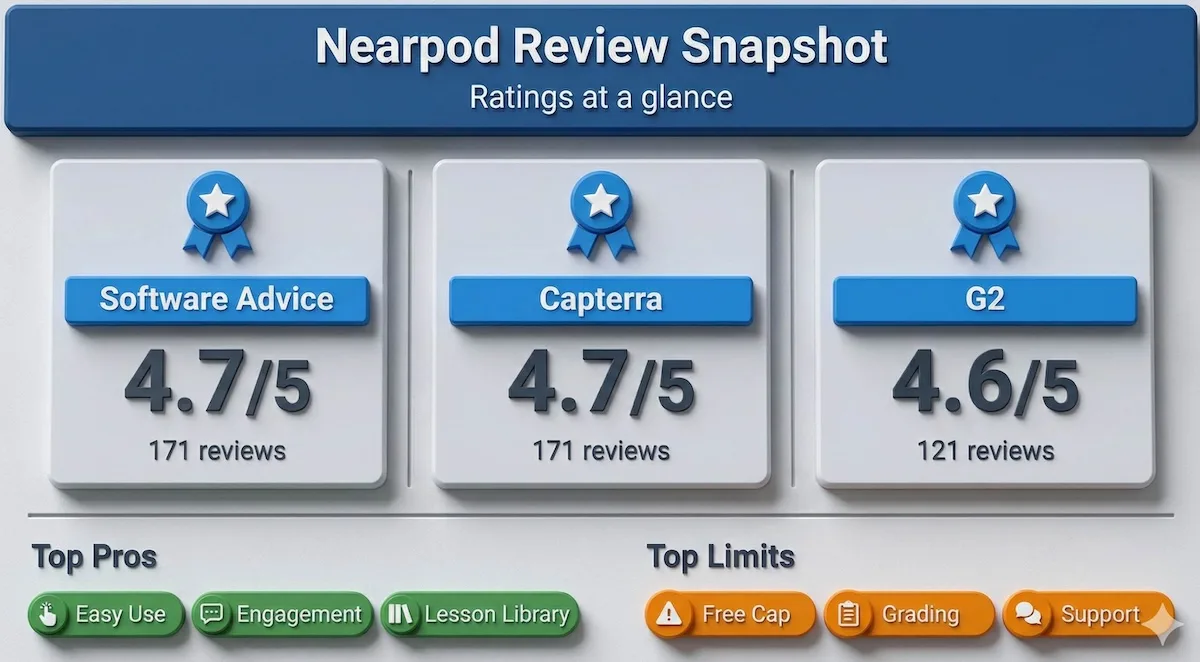 Nearpod consistently earns above-average ratings across every major review platform. Here is what verified users report on each site.Software Advice: Nearpod holds a 4.7/5 average from 171 reviews on Software Advice. Teachers regularly cite ease of use and student engagement as the strongest points. One elementary teacher wrote that the platform is “very easy to use” and that “students love it.” The interactive quiz and polling tools receive particular praise for giving teachers real-time visibility into who understands the material and who needs more support. The most common criticism is that the free plan’s feature set feels too restricted, especially for teachers who want to build video-heavy lessons.Capterra: The Capterra page mirrors Software Advice at 4.7/5. Reviewers here focus on two strengths: the large built-in lesson library and the Google Slides integration. Several teachers mention that converting existing Google Slides into an interactive Nearpod lesson eliminates the need to rebuild curriculum from scratch. Reported weaknesses include difficulty exporting grades and the absence of automatic LMS notifications — one reviewer noted that the platform “does not notify” teachers when students complete assignments, requiring manual grade checks.G2: On G2, Nearpod carries a 4.6/5 from 121 reviews. Users describe it as a “cloud-based interactive tool” with polls, open-ended questions, and virtual field trips. The ready-made content library is frequently mentioned as a planning time-saver — one teacher wrote that it “saves a lot of planning time” because lessons can be adapted rather than built from nothing. G2 reviewers are the most direct about the free plan’s limits: 100MB storage equates to roughly ten one-minute videos, and the 40-student cap per live session is the single most common reason teachers upgrade.Common Sense Education: Teachers on Common Sense Education rate Nearpod highly for its alignment with classroom-ready lesson structures and formative assessment. The educator community there values its interactive classroom learning activities, including draw-it tools, collaborate boards, and virtual reality experiences that go beyond what quiz-only tools can offer.Is Nearpod legitimate? Yes. Consistent ratings of 4.6–4.7 across multiple independent review platforms, deployment in more than 75% of U.S. school districts, and no credible reports of fraud or data misuse confirm that Nearpod is a well-established, trustworthy education tool.Recurring positives: interactive quiz and polling tools, large lesson library with thousands of ready-to-use lessons, virtual reality field trips, real-time student reports, and Google Slides conversion. Recurring negatives: free plan storage and student limits, limited LMS gradebook integration, and customer support that can be slow to respond on individual plans.
Nearpod Pricing
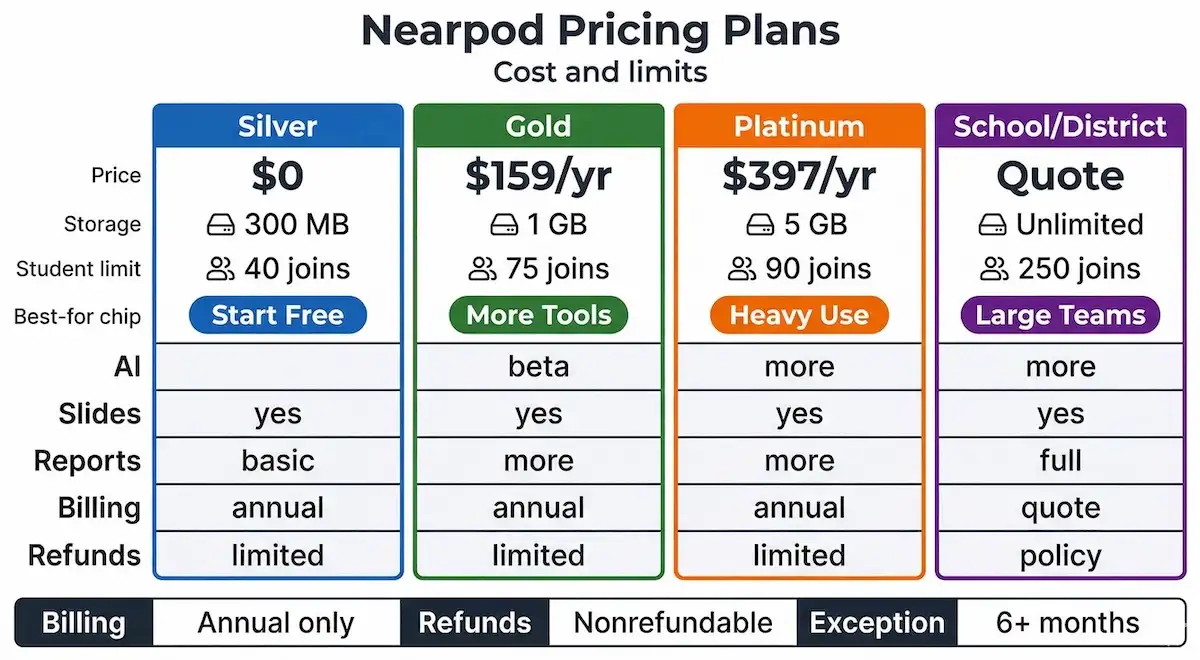 Nearpod offers four tiers. Three are for individual teachers; one is for schools and districts. All personal plans are billed annually — there are no monthly payment options. You can review current costs directly on the Nearpod pricing page.
| Plan | Annual Price | Storage | Students per Live Lesson | Best For |
|---|---|---|---|---|
| Silver (Free) | $0 | 100 MB | 40 | Teachers exploring the platform or running small classes |
| Gold | $159 | 1 GB | 75 | Individual teachers who have outgrown the free limits |
| Platinum | $397 | 5 GB | 90 | Teachers with video-heavy lesson libraries or large classes |
| School / District | Custom quote | Unlimited | Unlimited | Whole-school or district rollouts with admin reporting |
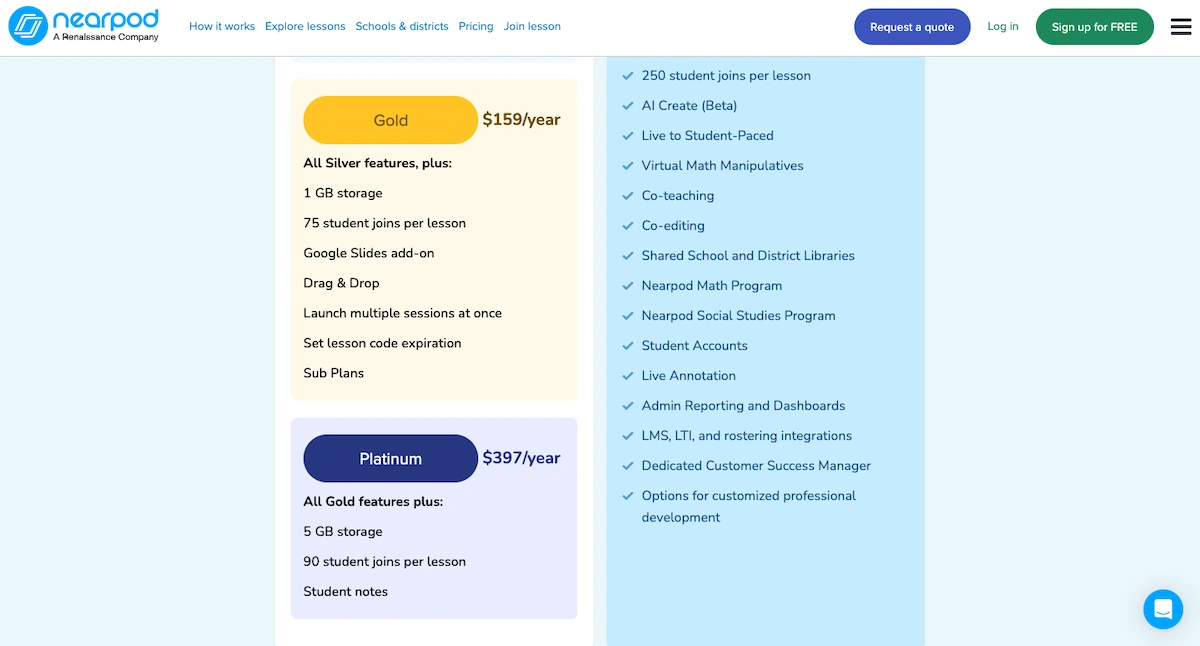 Payment mechanics: Nearpod charges one lump sum per year on the date of purchase. Credit cards and school purchase orders are both accepted. There are no monthly billing options, no pay-per-lesson charges, and no additional fees beyond any foreign transaction fee your bank may apply.Refund policy: Per Nearpod’s terms of use, all fees are prepaid and non-refundable. The only documented exception is a prorated refund on your remaining personal plan time if your school or district purchases a site license and you have more than six months left on your individual subscription. Outside that scenario, there are no refunds for early cancellation.Free trial: The Silver plan is permanently free with no time limit on the core product. Nearpod periodically offers free Gold upgrade promotions via promo codes, announced on the Nearpod site.If you are evaluating the platform before committing, start with Silver and run several live lessons before deciding whether the limits are workable for your class size. You can sign up free as a teacher and access the full Silver feature set immediately.What teachers say about pricing: On Reddit’s r/Teachers, the consensus is that $159/year is manageable with school reimbursement but feels steep when paid out of pocket. The 100MB free storage limit draws consistent criticism — one teacher described it as “terrible” for building lessons that include even a few short video clips. Overall, most reviewers say Nearpod’s feature set justifies the paid cost, but budget-constrained teachers who cannot obtain reimbursement may find it difficult to justify.
Nearpod Free vs Gold vs Platinum: What Teachers Actually Need
Most teachers who hit a wall with the Silver plan hit it at the same point: the 40-student cap per live session. Storage is the secondary concern. Knowing which limit will affect you first tells you which plan you actually need — and whether the upgrade cost is justified.The 40-student ceiling is the real trigger. Silver caps each live lesson at 40 concurrent students. That covers a single standard class section (typically 25–35 students) with some room to spare. The problem arises when teachers run multiple sections that combine, use Nearpod for assembly-style presentations, or teach in environments where one class section regularly exceeds 40.Gold raises the cap to 75 students per session; Platinum raises it to 90. If your largest single class is consistently under 40 students and you only ever run one section at a time, the free plan’s student limit is unlikely to become a problem.Storage: how quickly does 100MB disappear? A single one-minute video clip at standard classroom quality runs approximately 10MB. That gives you roughly ten short video clips on the free plan before storage is exhausted. Teachers who build primarily text-and-image lessons will find 100MB adequate for months of work.Teachers who embed videos, audio narrations, or animated slides will fill it within a week of serious lesson building. Gold (1GB) is sufficient for most individual teachers. Platinum (5GB) is designed for those with large multi-year lesson archives, high-frequency video use, or teachers who maintain an extensive library across multiple subjects.Feature differences beyond storage and student cap: The core lesson-creation tools — quizzes, polls, draw-it activities, collaborate boards, and the full lesson library — are available on all plans including Silver. The primary differences between Gold and Platinum are storage and the student cap. Platinum also includes priority support, which Gold and Silver do not. The free plan locks out a small subset of premium activity types and limits lesson report exports, but the interactive lesson experience itself is fully functional at no cost.| Teacher Profile | Recommended Plan | Reason |
|---|---|---|
| Single class under 35 students, mostly text and image lessons | Silver (Free) | Student limit and storage are both workable indefinitely |
| Classes between 35 and 75 students, occasional video use | Gold ($159/yr) | Raises student cap to 75; adds 1GB storage |
| Classes over 75 students, frequent video content, multi-year library | Platinum ($397/yr) | 90-student cap, 5GB storage, priority support |
| Department or school-wide deployment | School / District (custom) | Unlimited students, admin analytics, centralized billing |
Is Nearpod Worth Paying For? School Licensing Costs Explained
For individual plans, the value calculation is straightforward. Gold at $159/year works out to roughly $13/month. Most teachers who use Nearpod at least twice per week find that the lesson library and interactive tools save enough planning time to justify that cost when the school covers it. Paid entirely out of pocket, it requires a personal decision about whether the time savings outweigh the expense — and most active users say they do.School and district licensing: Nearpod offers site licenses for schools and districts through a custom-quote process. The Nearpod site license page collects your school name, enrollment size, and contact information. The sales team then provides pricing tailored to your number of teacher accounts and student enrollment. Published per-school pricing is not available; you must purchase through a direct quote request. Expect the sales process to take several business days from initial inquiry to a formal proposal.What a school license includes that individual plans do not: School and district plans provide unlimited students per live session, unlimited storage, admin-level dashboards showing usage and engagement data across all teacher accounts in the school, and centralized billing through a purchase order rather than individual credit cards. These plans also include dedicated onboarding support and priority access to the Nearpod customer success team — a meaningful upgrade over the slower support response times reported by individual plan users.Reimbursement path for existing individual subscribers: If you currently hold a Gold or Platinum plan and your school later purchases a district license, Nearpod provides a prorated refund for any unused time on your personal plan — but only if more than six months remain on your subscription. If you are approaching renewal and your school is actively negotiating a site license, timing your individual renewal carefully can avoid paying for an overlapping subscription period.Competitive context: School licensing costs for comparable platforms vary widely. Pear Deck charges approximately $150/year for individual Premium plans and handles school pricing through its sales team. Kahoot for Schools is similarly quoted on a per-teacher or per-school basis. Nearpod’s depth of built-in content and VR capabilities generally make it the richer platform at the school level, which tends to justify comparable or slightly higher licensing costs than Kahoot or Pear Deck.Bottom line: For individual teachers who use Nearpod consistently, Gold pays for itself. For schools, the site license removes every per-session constraint and centralizes the administrative overhead. The platform is not worth the cost for occasional or single-lesson use on either individual or school plans — Nearpod’s value compounds with frequency of use.Teachers preparing students for engineering admissions can also explore ENGAA Engineering Admissions Assessment tutoring for targeted exam preparation. For a detailed look at another test-prep platform, the Testive reviews, alternatives, and pricing breakdown offers a useful comparison.How to Set Up Nearpod for Live Lessons and Async Learning
Setting up Nearpod for the first time takes under 15 minutes. The platform runs in two distinct modes — teacher-paced (live) and student-paced (async) — and the setup process diverges slightly depending on which mode you intend to use for a given lesson.Step 1: Create your teacher account. Go to Nearpod’s teacher signup page and register with your school email or Google account. Verification takes approximately two minutes. The Silver plan activates immediately — no credit card required. Students who need their own account can sign up for free separately, though they can also join live lessons using only a session code in most configurations.Step 2: Build or import your lesson. Nearpod gives you three starting points: (a) choose from the ready-made library of thousands of educator-created lessons organized by subject and grade level, (b) upload an existing PowerPoint or Google Slides file and convert it into an interactive Nearpod lesson automatically, or (c) build a new lesson from scratch using the drag-and-drop editor. For first-time users, starting with a library lesson or a converted Google Slides file is the fastest path to running your first session without creating content from nothing.Step 3: Add interactive elements. After loading your slides, open the activity panel and insert any combination of the following: multiple-choice quiz, open-ended question, draw-it activity, collaborate board, time-to-climb competition, virtual field trip, or poll. Each element pauses the lesson at that slide and collects student responses before advancing. You can add as many or as few activities as the pacing of the lesson requires — most teachers aim for one interactive element every three to five slides.Step 4: Launch a live lesson (teacher-paced). Click “Live Participation” when your lesson is ready. Nearpod generates a five-character join code. Share that code verbally or project it on screen. Students navigate to the Nearpod join page per the Nearpod how-it-works guide, enter the code, and are immediately placed in your session. Once students have joined, you control slide advancement from your device. Student responses appear in real time on your dashboard. The live session stays active until you end it — students cannot advance ahead of you in teacher-paced mode.Step 5: Set up async (student-paced) learning. To release a lesson for independent completion, select “Student-Paced” instead of “Live Participation” when launching. Nearpod generates a shareable link or code that students can open at any time within a window you define. In student-paced mode, students move through slides at their own speed, complete all activities, and submit responses on their own schedule. You receive a compiled per-student report after each completion. Student-paced mode is the primary delivery method for homework, flipped classroom pre-reading, and makeup work for students who missed a live session.Reviewing results: After any session ends, open the Reports section of your Nearpod dashboard. You will see a per-student breakdown showing which questions each student answered, what their responses were, and how they compare to the class average. Reports can be exported as a spreadsheet. LMS grade passback is limited on individual plans and requires school-level configuration where supported — a recurring limitation noted in teacher reviews.Tips for smooth delivery: Test every lesson on your own device before class to confirm all media loads correctly. For live sessions, keep lessons under 30 slides to maintain a manageable pace. Longer lessons work better in student-paced mode where students control timing. If connectivity is unreliable in your classroom, student-paced mode is more resilient because it does not require real-time sync between teacher and student devices.Nearpod vs Kahoot vs Pear Deck: Real Teacher Comparison
The three platforms most commonly evaluated together by teachers choosing a primary classroom engagement tool are Nearpod, Kahoot, and Pear Deck. All three add interactivity to instruction, but they approach it differently and suit different classroom priorities.| Feature | Nearpod | Kahoot | Pear Deck |
|---|---|---|---|
| Primary use case | Full interactive lesson delivery | Competitive quiz games | Interactive slide presentations |
| Free plan student cap | 40 per live session | No published cap on free tier | No cap (requires Google account) |
| Built-in content library | Thousands of educator-built lessons | Millions of user-created quizzes | Limited; relies on teacher slides |
| VR / immersive content | Yes (virtual field trips) | No | No |
| Google Slides integration | Yes (import and convert) | No | Yes (native Google Workspace add-on) |
| Student-paced / async mode | Yes (all plans) | Limited (challenge mode only) | Yes (premium feature) |
| Real-time teacher dashboard | Yes (per-student responses) | Yes (leaderboard-focused) | Yes (per-student responses) |
| Individual teacher paid price | $159–$397/year | ~$200+/year (premium content) | ~$150/year (Premium) |
| Average teacher rating | 4.7/5 (Software Advice) | 4.6/5 (G2) | 4.4/5 (G2) |
Nearpod Alternatives
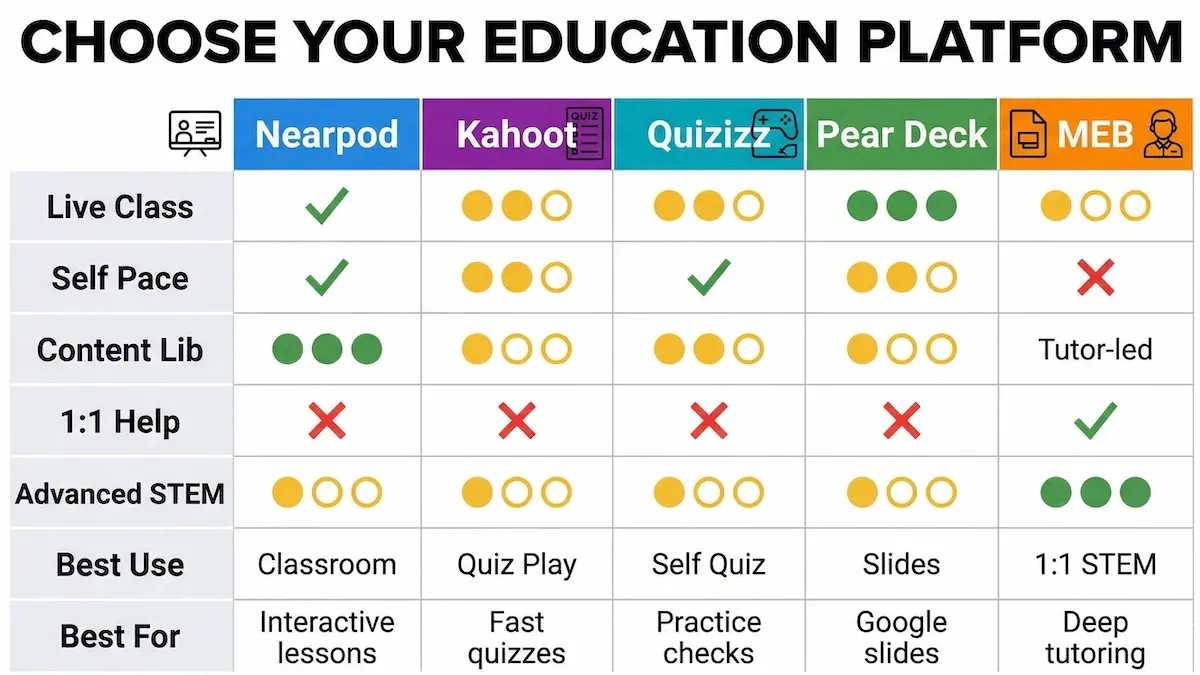 If Nearpod does not meet your needs, these five alternatives address different classroom contexts and learning requirements.
Kahoot!
 Kahoot is free, immediately recognizable to students, and requires no learning curve for either teachers or students. Its game-based quiz format generates high participation in short bursts, making it effective for end-of-class reviews and warm-up activities. The free plan has no per-session student cap, which makes it practical for large-group settings without a subscription.The main limitation is scope: Kahoot covers quizzes almost exclusively. There are no slide-based lessons, no VR experiences, no collaborative boards, and no robust async homework mode. It functions as a high-engagement review tool, not a full lesson delivery platform.
Quizizz
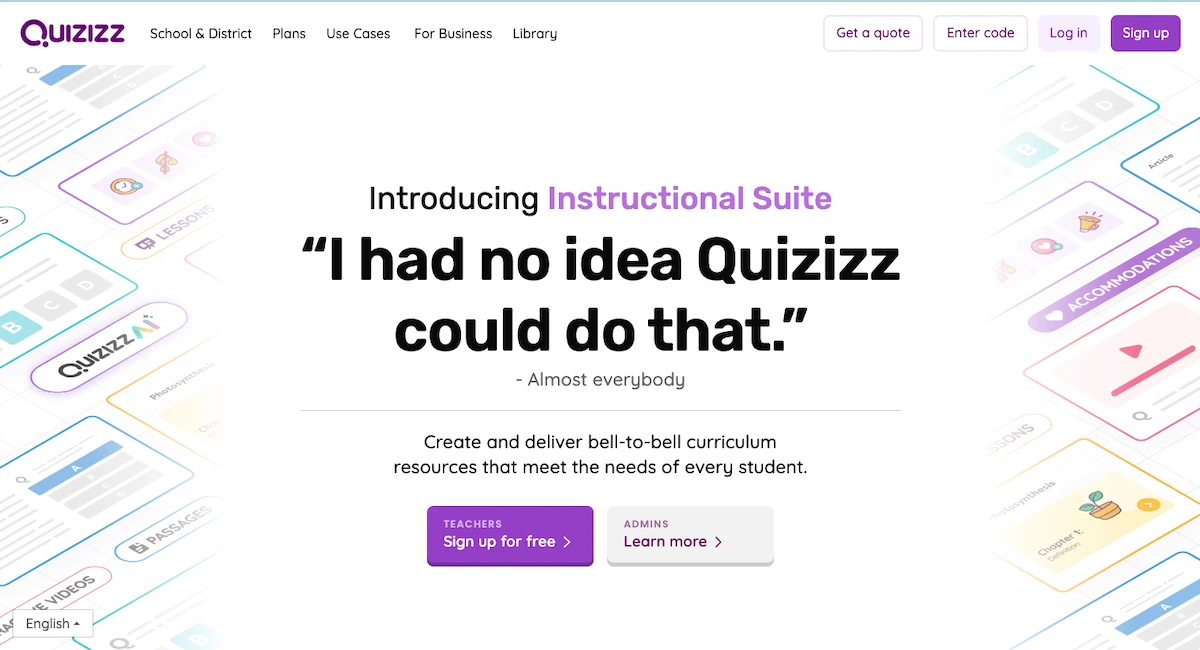 Quizizz offers self-paced quizzes where students work through questions at their own speed rather than competing in real time. That distinction makes it better than Kahoot for formative checks where comprehension matters more than speed. The free plan covers most core quiz features. Like Kahoot, Quizizz is primarily a quiz platform and does not offer slide-based lesson delivery, VR content, or the depth of Nearpod’s built-in curriculum library. It is a strong supplementary tool for self-paced review but is not a replacement for a full lesson platform.
My Engineering Buddy (MEB)
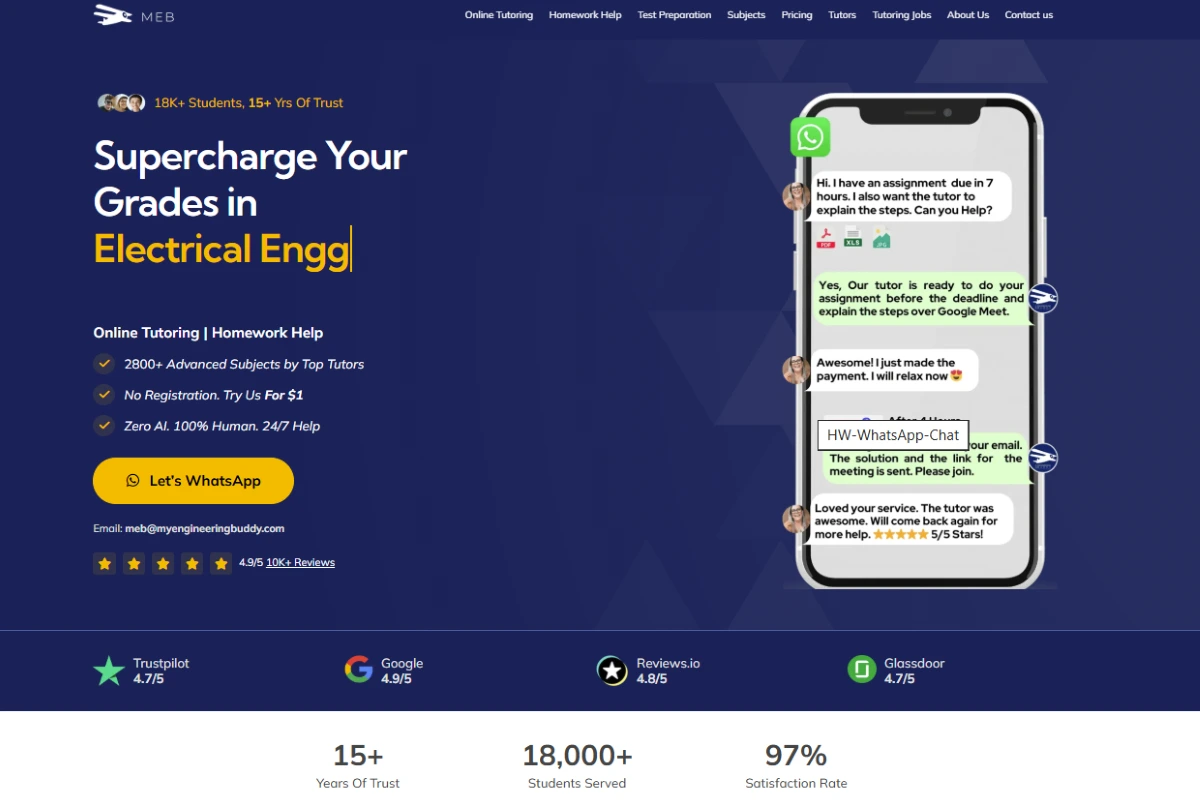 My Engineering Buddy is a one-on-one tutoring platform for college and university students in STEM subjects. It is not a classroom engagement tool in the way Nearpod, Kahoot, or Pear Deck are — there are no shared slides or live quiz games. Instead, MEB connects students with vetted engineering and science tutors for personalized guidance on coursework, exam preparation, and problem-solving.Only the top tutors pass MEB’s vetting process, ensuring consistently high instruction quality. Pricing is per session, which keeps costs proportional to actual usage rather than requiring an annual subscription. MEB is the relevant Nearpod alternative specifically for engineering and STEM students who need deeper subject expertise than a classroom tool can provide. You can review MEB’s tutoring rates directly on the site.
Edpuzzle
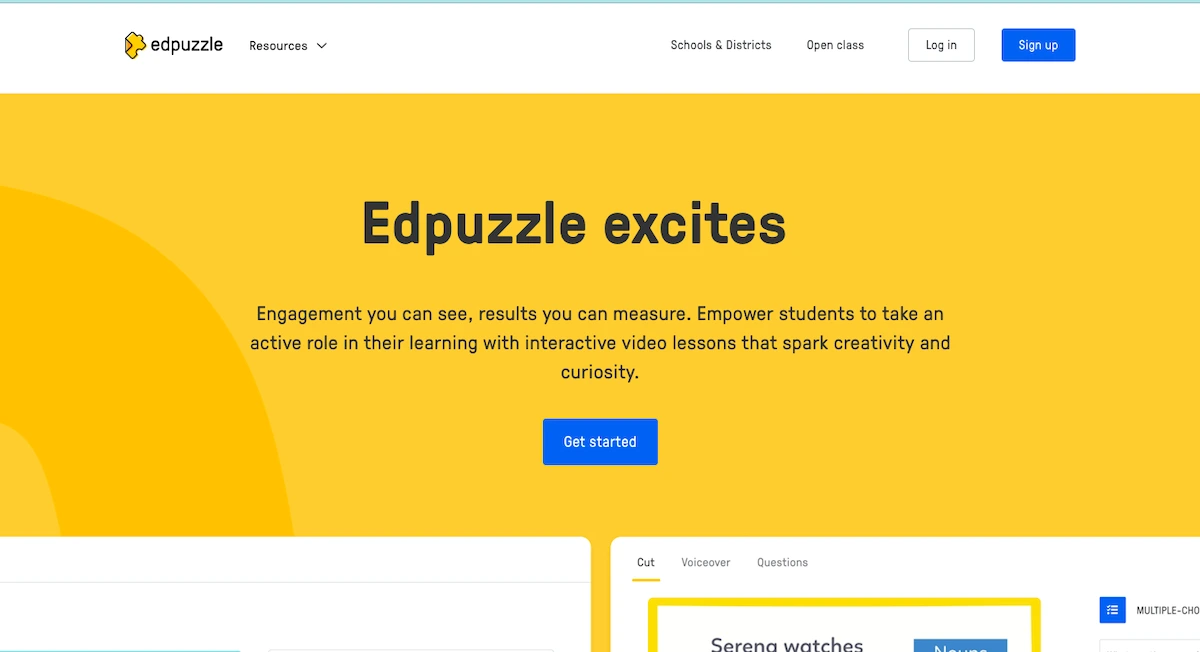 Edpuzzle turns any video from YouTube, Khan Academy, or your own uploads into an interactive lesson by embedding quiz questions at specific timestamps. Students must answer each question before the video continues, which forces active engagement rather than passive viewing. Edpuzzle’s analytics show exactly which timestamps students struggled with, making it a strong diagnostic tool for video-based instruction. The free tier is practical for teachers with smaller lesson libraries. Edpuzzle is specialized for video-based content and does not offer slide lessons, VR, or collaborative boards. It works well as a complement to Nearpod rather than a direct replacement.
Pear Deck
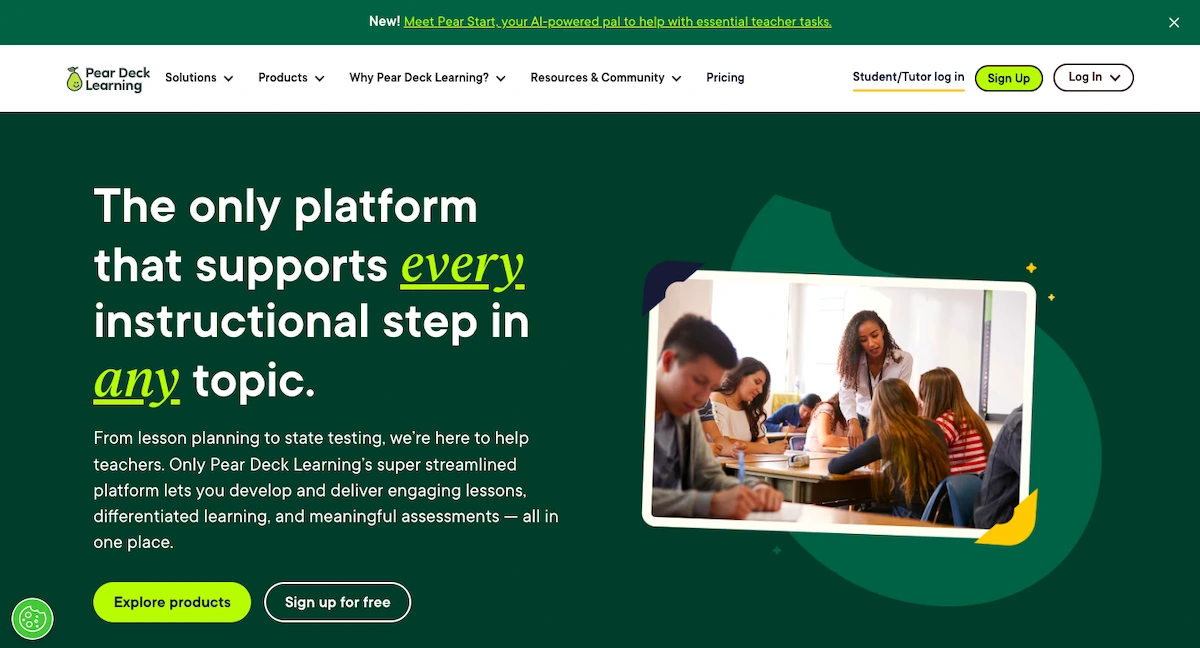 Pear Deck integrates directly into Google Slides, allowing teachers to add interactive questions to existing presentations without rebuilding content. The free tier requires a Google account and covers basic interactive slide use. The Premium plan adds student-paced mode, advanced response types, and deeper reporting. Pear Deck carries a slightly lower overall rating than Nearpod (4.4 vs 4.7) and does not include VR content or a built-in lesson library. Its Google Workspace integration makes it the lowest-friction interactive tool for teachers who already work primarily in Google Slides and Google Classroom.Students preparing for IB examinations can find focused support through an IB tutor for one-on-one exam preparation. For a review of another assignment-support platform, the UAE Assignment Help reviews and alternatives article covers what to expect from that service.
How Nearpod Works
For Students
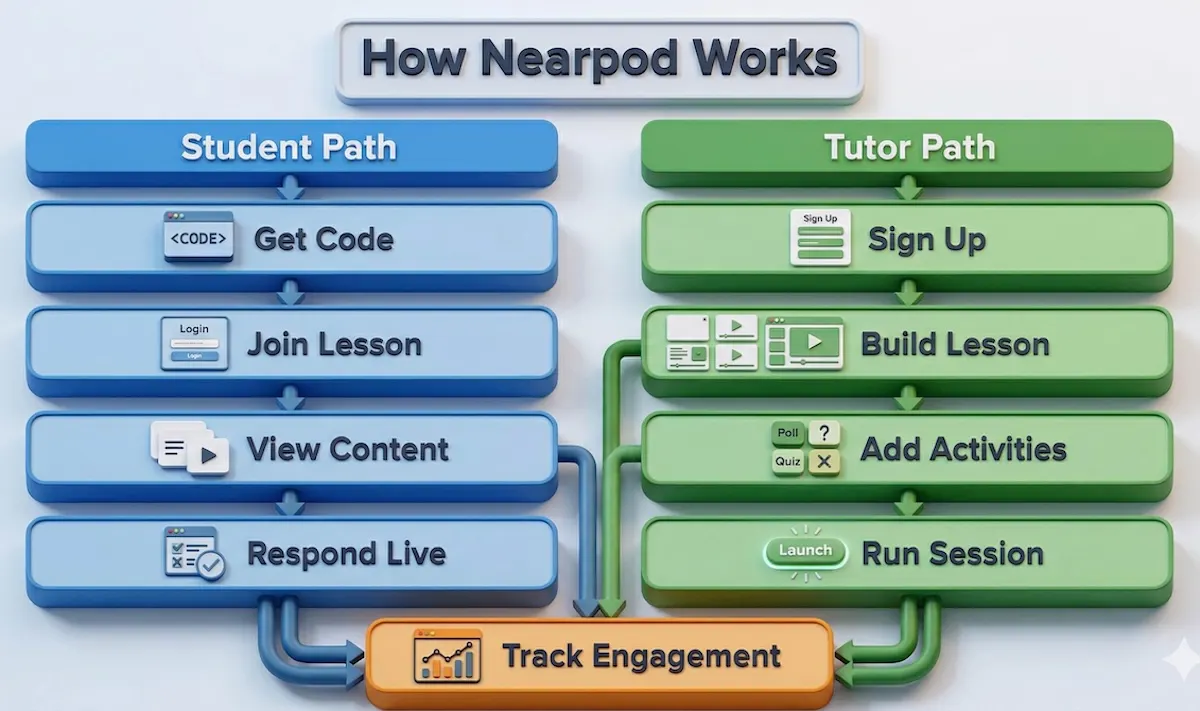
Students join Nearpod lessons by entering a session code provided by their teacher. In most live session configurations, no account is required — students navigate to the Nearpod join page, enter the five-character code, and are immediately placed inside the lesson. Students who create a free student account can access their lesson history and open student-paced assignments independently.Once inside a live session, students see the same slides as the teacher and submit responses to quizzes, polls, and activities on their own device. The teacher’s dashboard updates in real time as responses come in. Students cannot advance ahead of the teacher in live mode — slide control belongs entirely to the person running the session.For Tutors
Teachers and tutors access Nearpod by signing up on Nearpod’s site as an educator at no cost. After setup, they can immediately begin building lessons from scratch, importing Google Slides, or selecting from the platform’s content library. Nearpod is a subscription tool, not a gig marketplace — it does not source students for tutors or set hourly pay rates.Tutors use Nearpod as a lesson delivery medium, managing student relationships outside the platform through their school, tutoring agency, or private practice. The platform does not vet or certify tutors, and it does not collect any commission on sessions conducted using its tools.Can tutors set their own fees on Nearpod? No. Nearpod is not a tutoring marketplace. Any fee arrangement between a tutor and their students happens outside the platform entirely.Is it easy to find students through Nearpod? No. Nearpod does not match tutors with students. It is a lesson delivery tool. Tutors find their own students through their school, external networks, or platforms specifically built for tutor-student matching.What tutors value most about Nearpod: Teachers consistently cite ease of use and the interactive lesson tools. Reviews note that the platform is “very easy to use” and that the built-in library “saves a lot of planning time.” The real-time feedback dashboard is frequently mentioned as the most useful feature for understanding which students need more support during a live lesson.What tutors find frustrating: The free plan’s 100MB storage cap and 40-student limit draw the most consistent criticism. Limited LMS integration and the absence of automatic grade notifications are the next most common complaints across Capterra and G2 reviews.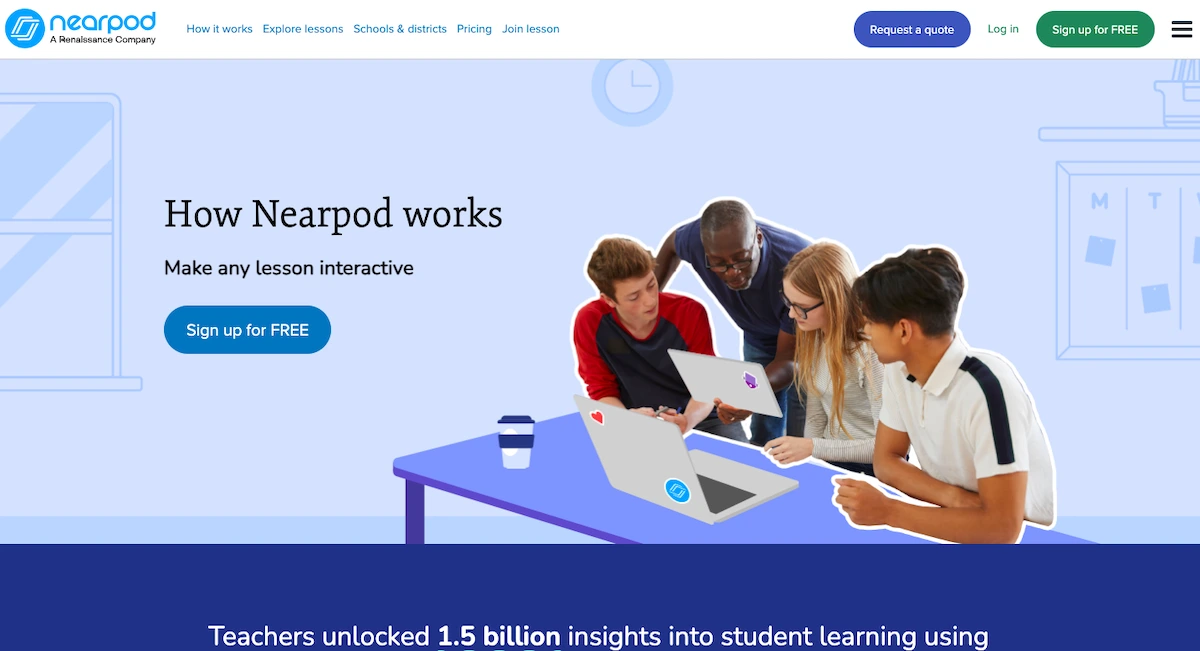 For a review of an image-extraction tool that some educators use alongside lesson platforms, the ImageToText.io review on text extraction accuracy is worth reading.
Company Information
Nearpod was founded in 2012 by Emiliano Abramzon and co-founders in the United States. The company is headquartered in Florida. Its stated mission is to support teachers and make education more equitable by giving educators tools to actively engage every student in every lesson. In 2021, Nearpod merged with Renaissance Learning, a larger education technology company, which expanded both its resources and its international reach.The platform is currently used in approximately 75% of U.S. school districts and in roughly 150 countries. Nearpod partners with more than 70 content publishers to supply its lesson library. Core platform features include interactive quizzes and polls, virtual reality field trips, draw-it activities, collaborate boards, real-time student reports, and both live teacher-paced and self-paced async delivery modes. Subject coverage spans K–12 across mathematics, science, social studies, language arts, and world languages.For schools and districts interested in site licensing, Nearpod’s sales team handles all enterprise inquiries through the site license page. For student and teacher support, the primary contact channel is the in-platform help system at nearpod.com. College and university students seeking online tutoring in engineering or STEM subjects should note that Nearpod is oriented toward K–12 classroom settings; platforms like My Engineering Buddy are better suited to advanced academic support at the university level.Frequently Asked Questions About Nearpod
Is Nearpod free forever?
Yes. The Nearpod Silver plan carries no time limit and costs nothing. The 40-student cap per live session and 100MB storage limit are structural features of the free tier, not trial constraints that expire. You can use the Nearpod Silver plan indefinitely.What happens when you hit the 40-student limit on Nearpod’s free plan?
Once 40 students have joined a live Nearpod session, additional students cannot enter and see an error message indicating the session is at capacity. There is no waitlist or overflow mode. The fix is upgrading to Gold (75-student cap) or Platinum (90-student cap), or switching the lesson to student-paced mode, which has no concurrent user limit on any plan.Does Nearpod work with Google Classroom?
Nearpod integrates with Google Classroom in two ways. You can import Google Slides directly into Nearpod and convert them to interactive lessons. You can also share student-paced Nearpod lesson links inside Google Classroom assignments. Native grade passback from Nearpod to the Google Classroom gradebook is not available on individual plans and requires school-level configuration where supported.Can students use Nearpod without an account?
Students can join live teacher-paced Nearpod sessions without creating an account by entering only the session code. For student-paced lessons assigned as homework, a student account is typically required so responses can be attributed and saved to the correct student record. Creating a Nearpod student account is free with no time limit.How much does a Nearpod school license cost?
Nearpod does not publish school or district licensing prices. Cost depends on the number of teacher accounts, student enrollment, and scope of deployment. You must request a custom quote through the Nearpod sales team. Expect several business days from initial inquiry to a formal proposal.Is Nearpod better than Kahoot?
It depends on your goal. Nearpod is better for full lesson delivery, async homework, content library depth, and formative assessment reporting. Kahoot is better for high-energy, game-based quiz moments where student excitement and competitive engagement are the primary goals. Most teachers who use both describe Nearpod as their primary instructional platform and Kahoot as an occasional supplement for review games.Related Reading
******************************
This article provides general educational guidance only. It is NOT official exam policy, professional academic advice, or guaranteed results. Always verify information with your school, official exam boards (College Board, Cambridge, IB), or qualified professionals before making decisions. Read Full Policies & Disclaimer , Contact Us To Report An Error